Silk Mobile
Table of Contents (Homepage)
- Overview
- Setting Up
- Getting Started
- How To
- Connecting Devices And Emulators
- Preparing Applications For Testing
- Managing Applications
- Recording Tests
- Working With Test Commands
- Adding Commands To Your Scripts
- Object Commands
- Click
- ClickCoordinate
- ClickIn
- ClickOffset
- Drag
- ElementGetProperty
- ElementGetTableRowsCount
- ElementListPick
- ElementListSelect
- ElementListVisible
- ElementScrollToTableRow
- ElementSendText
- ElementSetProperty
- ElementSwipe
- ElementSwipeWhileNotFound
- GetAllValues
- GetElementCount
- GetElementCountIn
- GetTextIn
- IsElementBlank
- IsElementFound
- IsFoundIn
- LongClick
- RunNativeAPICall
- SendWhileNotFound
- VerifyElementFound
- VerifyElementNotFound
- VerifyIn
- WaitForElement
- WaitForElementToVanish
- GetCoordinateColor
- DragDrop
- Application Commands
- Device Commands
- Web (Hybrid) Specific Commands
- Utilities Commands
- Monitoring Commands
- Configuration Commands
- ExtractLanguageFiles
- SetDefaultClickDownTime
- SetDefaultTimeOut
- SetDefaultWebView
- SetDragStartDelay
- SetInKeyDelay
- SetKeyToKeyDelay
- SetLanguage
- SetLanguagePropertiesFile
- SetShowImageInReport
- SetShowPassImageInReport
- SetShowReport
- SetSpeed
- SetThrowExceptionOnFail
- SetWebAutoScroll
- StartStepsGroup
- StopStepsGroup
- TextFilter
- Miscellaneous Commands
- Controlling Element Identification Rules
- Editing Test Objects
- Executing Test Scripts
- Report Of Executed Test
- Working From Code Environment
- Continuous Integration
- Layout Verification Tests
- Use Device Vitals Monitors
- Troubleshooting
- Terminology
Web Recognition Properties
User can used this recognition method in the following ways:
-
After application preparation (for hybrid application): Preparing Native/Hybrid Applications for Testing
-
On mobile web testing: Performing Mobile Web Testing
-
Using the object spy mode: Using the Reflection's Control Buttons
User can get the Web properties of all HTML objects on the screen.
Example:
We will show how to use native recognition while using the Eri-bank Instrumented demo application.
Step 1: After login into the application, you will have the Hybrid page in the application.
The "Your Balance is 140.00 $" is web part in this application.
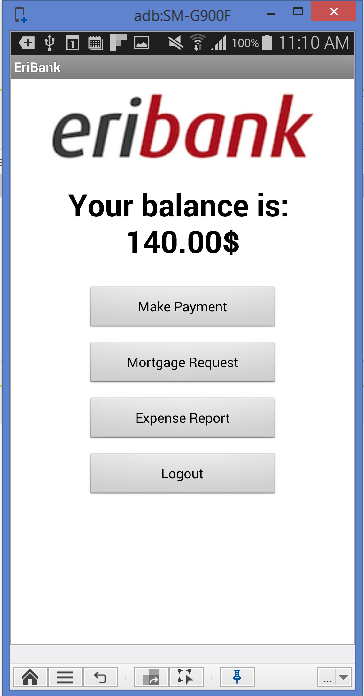
Step 2: Click on the 'object spy' button at the bottom of the device reflection.
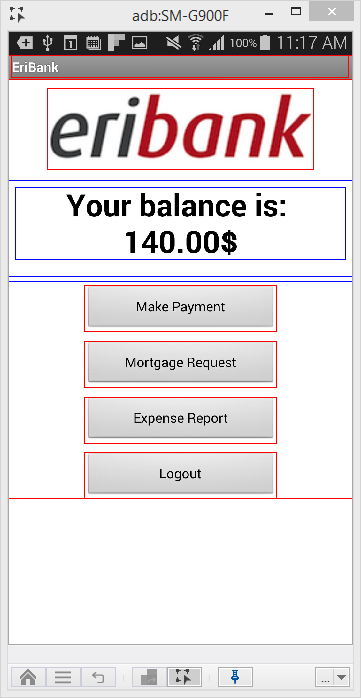
Web elements are identified with the blue color on object spy mode. By marking one of such elements, you can get its web properties.
Step 3: Extract the element's web property.
-
Click the "Your Balance is 140.00 $"
-
Right Click on the "Your Balance is 140.00 $" element.
-
Click on the 'Extract Object'.
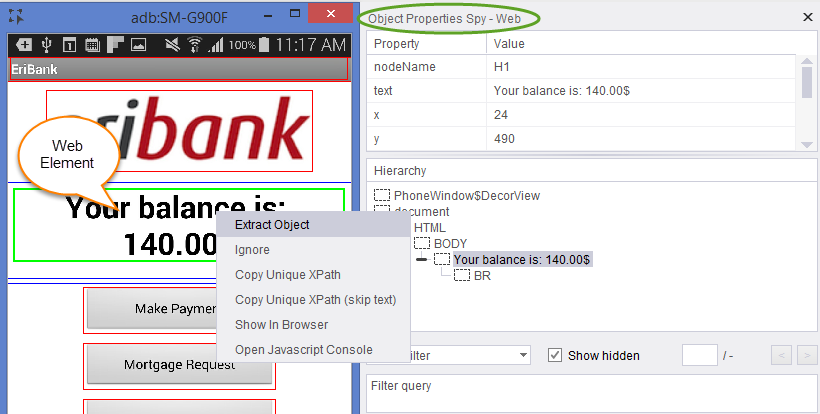
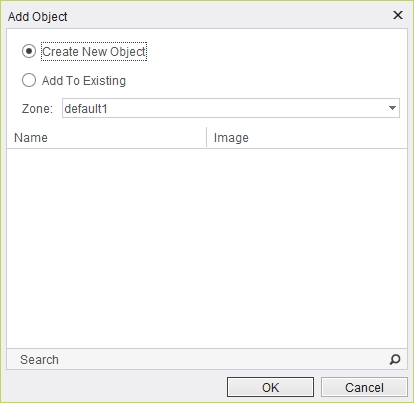
A pop-up will generate in which you need to choose from following values:
-
Create New Object: Regular extraction.
-
Add to Existing: Add the element's property to an existing element.
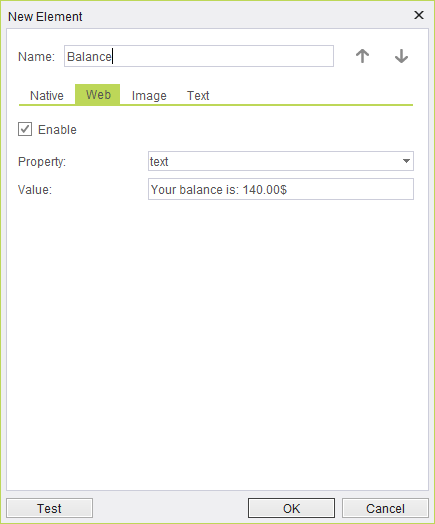
In the element property, you will see the 4 tabs, click on the web tab, you will see 'Enable' check box ticked and the element's web properties are written in the field below: